Honeywell Laser Scanner Not Working: Fix It Fast
If your Honeywell scanner laser isn’t working, you’re likely facing delays in inventory, shipping, or sales operations. The good news? In many cases, the fix is simple—a disabled scan trigger setting—not hardware failure. This guide gives you a step-by-step path to diagnose and resolve the issue quickly, whether it’s software-based, environmental, or a true hardware fault.
You’ll learn how to check settings, test functionality, and know when to request repair—all without guesswork. Every troubleshooting step is covered, from the quickest fixes to hardware diagnostics.
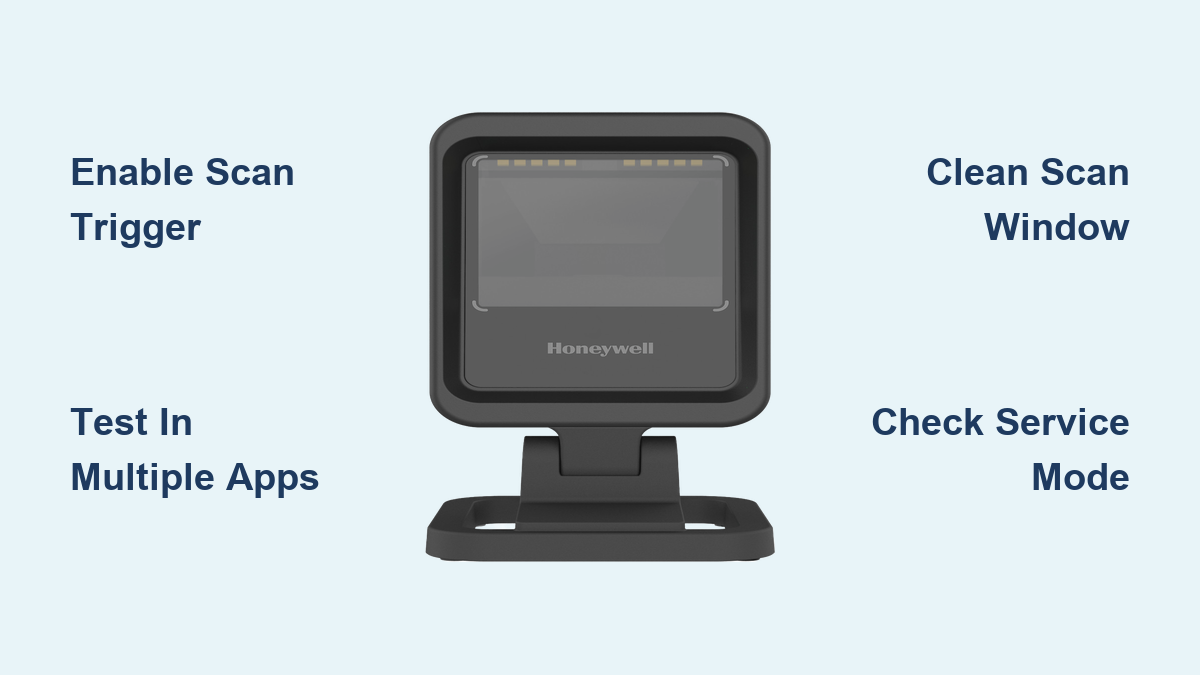
Check Scan Trigger Settings First
Most “dead laser” issues stem from a misconfigured setting, not broken hardware. This takes under a minute to verify and resolves over half of all reported cases.
Enable Scan Trigger in Your Profile
- Tap App Gallery on the home screen.
- Open Settings (the blue-green icon).
- Scroll down and select Honeywell Settings.
- Tap Scanning then Internal Scanner.
- Choose your active profile, typically Default or Profile 1.
- Go to Trigger Settings.
- Ensure “Enable Scan Trigger” is checked.
If this setting was unchecked, enable it and test immediately. Many users report instant restoration of the laser after this single fix.
Some models use different labels for this setting. Look for variations like “Activate on Trigger,” “Scan Enable,” or “Laser On/Off via Button” if you don’t see the standard option.
Test Scanner in Multiple Apps
Don’t assume the scanner is dead until you’ve tested across different applications. The issue might be app-specific rather than device-wide.
Why Testing in Multiple Apps Matters
If scanning works in one app but not another, the problem lies in that particular app’s configuration, not the hardware. This saves you from unnecessary repairs or replacements.
How to Verify Scanner Functionality
Test scanning with these applications:
- Honeywell Test Tools (preloaded on most enterprise models)
- Barcode Scanner from Google Play
- Your custom enterprise app used daily
Watch for three indicators of working functionality: the laser beam activation, a beep sound on successful scan, and data appearing in the app.
No response in any app suggests hardware or system-level disable. Working in one app only means you should reconfigure that specific app’s scanner settings.
Access Service Mode for Diagnostics
Honeywell devices include built-in diagnostic tools that bypass app-level settings to directly test the scanner hardware.
Launch Honeywell Test Tools
- Open App Gallery from the home screen.
- Find and launch Service Mode, Test Tools, or Scanner Diagnostics.
- Select Scanner or Internal Scan Engine.
- Tap Test Laser or Trigger Scan.
Watch for a red laser grid or line. No light visible? Proceed to hardware checks. This test confirms whether the scan engine itself is functioning.
Clean the Scan Window Properly
Dust, grime, or scratches on the scan window can block or diffuse the laser beam, making the scanner appear broken.
Safe Cleaning Procedure
- Power off the device completely.
- Wipe the scan window with a microfiber cloth.
- For stubborn residue, dampen the cloth with 70% isopropyl alcohol.
- Gently clean in circular motions without pressing hard.
- Let dry completely before powering on.
Never use abrasive cleaners, ammonia, or direct sprays. These can damage anti-reflective coatings on the window. Clean regularly in dusty environments to prevent buildup.
Diagnose Hardware Failures

If settings and cleaning don’t restore the laser, inspect for physical damage or internal component failure.
Check for Physical Damage Signs
Examine the device for these indicators:
- Dents near the scanner window
- Cracked housing
- Sticky or unresponsive trigger button
- Corrosion if exposed to moisture
Drop impacts often dislodge the scan engine or break solder joints inside the device.
Reseat Internal Connections
Only qualified technicians should open the device. Tampering may void your warranty.
If you’re authorized to perform field repairs:
- Power off and remove the battery if accessible.
- Open the back cover or housing carefully.
- Locate the scan engine flex cable connected to the motherboard.
- Unplug and reseat the ribbon cable firmly.
- Check for bent pins or signs of corrosion.
A loose connection is a common cause of sudden scanner failure after drops or device impact.
Identify Failed Laser Diode Symptoms
These symptoms indicate a failed scan engine requiring replacement:
- No laser light in any mode, even in Service Test
- No beep or feedback when triggering
- Device logs show “Scanner Not Detected”
Contact Honeywell Support with your serial number and failure description to initiate a Return Merchandise Authorization.
Model-Specific Navigation Tips
Menu paths are similar across Honeywell mobile computers, though slight variations exist.
Supported Devices
This guide applies to Dolphin CT40, CT60, EDA52, CN80, CT50, and similar models running Android with Honeywell Enterprise UI.
Universal Settings Path
Settings → Honeywell Settings → Scanning → Internal Scanner → [Profile] → Trigger Settings → Enable Scan Trigger
Android 10 through 12 may hide Honeywell Settings under Enterprise or Device Admin. Custom MDM skins might rename or restrict access entirely. Contact your IT admin if settings are missing—MDM policies may lock scanner configuration.
Resolve Intermittent Laser Issues
Sometimes the laser works only occasionally, especially after tapping the device gently.
Likely Causes
- Loose internal cable between scan engine and motherboard
- Failing laser diode nearing end of life
- Weak power delivery to scan engine components
Diagnostic Shortcut
Tap the scanner area gently while pressing the trigger. If the laser flickers or activates, a loose internal connection is the likely culprit. This mechanical sensitivity confirms a hardware fault requiring internal inspection or component replacement.
Prevent Future Scanner Failures
Avoid downtime with proactive care and proper device management.
Best Practices
- Audit scanner settings after every firmware update
- Use rugged cases designed for your model
- Block all liquid exposure to prevent corrosion
- Schedule monthly scan tests to catch issues early
- Update firmware through MDM for consistent deployment
Use MDM tools like SOTI, VMware Workspace ONE, or Honeywell Sentience to push correct scanner profiles to all devices enterprise-wide. This prevents users from accidentally disabling critical functions.
When to Contact Honeywell Support
Not every issue can be fixed in the field. Know when to escalate.
Request RMA If
- Laser fails in all apps and test modes
- No response from trigger button
- Device was dropped, wet, or physically damaged
- Reseating cables doesn’t restore function
Support Resources
Access the Honeywell SPS Portal at honeywellsps.com for firmware downloads, diagnostics, RMA processing, and technical bulletins. Have your device model number, serial number, and failure description ready before contacting support.
Key Takeaways for Fixing Your Honeywell Scanner
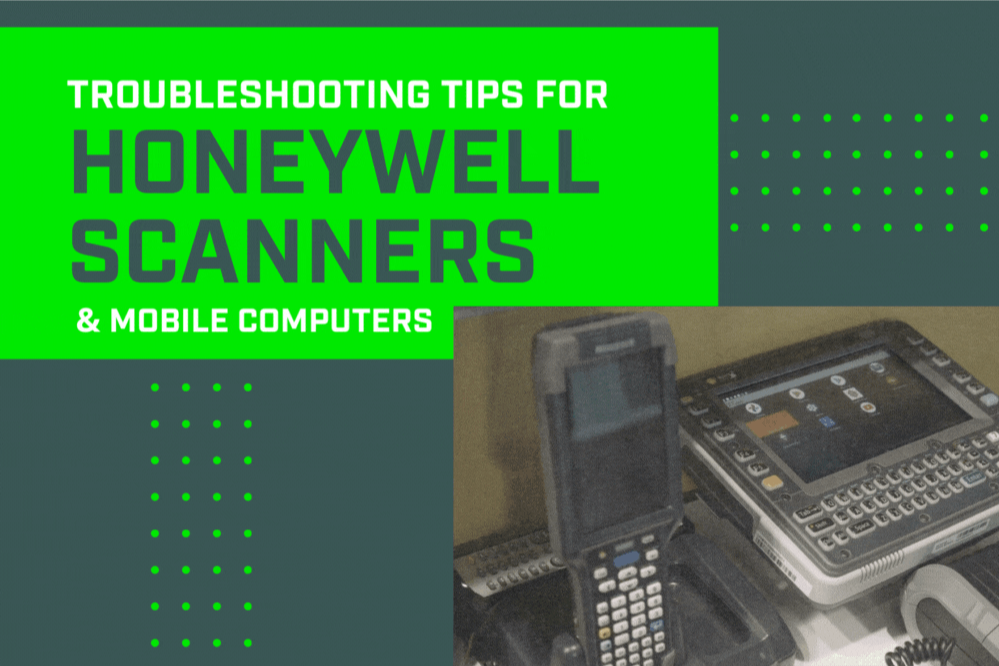
The majority of “laser not working” cases resolve in under five minutes by checking one setting. Always start with software and configuration before assuming hardware failure. Enable the scan trigger, test in multiple apps, and clean the scan window first. Only proceed to hardware inspection—cable reseating or internal checks—when software fixes fail. Keep this guide accessible for fast response when scanners fail in the field.
Frequently Asked Questions About Honeywell Scanner Laser Issues
Why is my Honeywell scanner not producing a laser beam?
The most common cause is the “Enable Scan Trigger” setting being unchecked in your scanning profile. Access Settings → Honeywell Settings → Scanning → Internal Scanner → [Your Profile] → Trigger Settings and ensure the option is enabled.
How do I test if my Honeywell scanner laser is working?
Use Honeywell Test Tools or Service Mode (found in App Gallery) to manually trigger the scanner. If the laser activates in test mode but not in your app, the issue is app-specific configuration.
Can a dirty scan window block the laser?
Yes. Dust, grime, or scratches on the scan window can block or diffuse the laser beam. Clean gently with a microfiber cloth and 70% isopropyl alcohol. Never use abrasive cleaners.
What does it mean if the laser only works sometimes?
Intermittent laser activation usually indicates a loose internal connection or failing laser diode. Try gently tapping the scanner area while pressing the trigger. If it responds, internal inspection is needed.
When should I request an RMA for my Honeywell scanner?
Request an RMA if the laser fails in all apps and test modes, there’s no response from the trigger button, or the device was dropped or exposed to moisture. Reseating internal cables should be attempted first if you’re qualified.
How do I prevent scanner failures in the future?
Audit scanner settings after updates, use rugged cases, avoid liquid exposure, perform monthly functional tests, and deploy scanner profiles via MDM to prevent accidental misconfiguration.